
Connect a machine
A machine is a computer whose Lykeion daemon exposes agent CLI runtimes. The hosted app needs one to execute agent work. Use a macOS or Linux execution machine and install and authenticate Claude Code or Codex there. Native Windows agent execution is not supported: the daemon has no Windows sandbox. Choose the desktop app for your own computer or the prebuilt CLI for a remote machine; neither path requires building Lykeion from source.
Connect with the desktop app
- Open the download page and choose the desktop app for your platform.
- Install it and sign in to your lab account. The app includes the agent daemon.
- Check Settings → Machines for this computer and its detected runtimes. Use its daemon controls to start execution when needed.
- Confirm that the intended Claude Code or Codex runtime is online and healthy before assigning work.
Connect a remote computer with the prebuilt CLI
Use the macOS / Linux instructions on the download page. Linux also needs bubblewrap; macOS uses its built-in sandbox. Install and sign in to Claude Code or Codex on that machine first.
Run the published installer, sign in to Lykeion, select your workspace and start the daemon:
curl -fsSL https://raw.githubusercontent.com/lykeion-tech/lykeion/main/scripts/install.sh | bash
lyk login --email you@lab.org --server https://app.lykeion.tech
lyk workspace switch <slug>
lyk daemon start
Replace the email and workspace slug with your own, and enter the emailed code in the terminal. Follow the installer's PATH instructions if lyk is not found. These commands also work over SSH. Use your actual hosted origin if it differs.
Operate your lab from Claude Code or Codex
Once lyk whoami shows your Lykeion account, install the Lykeion CLI skill in Claude Code or Codex. It uses your existing CLI sign-in to inspect the board, check pending Decisions, and work with studies and Autoresearch.
Alternative: build from source
The dashboard's Add a machine dialog also offers a source-build path. This alternative requires Go 1.26 and a Lykeion source checkout. Run its displayed build command from the checkout's server directory, then follow its login and daemon instructions. The dialog also displays Windows build commands, but building or starting a daemon does not supply the missing Windows sandbox. Use a macOS or Linux execution machine for agent runs.
Confirm execution is ready
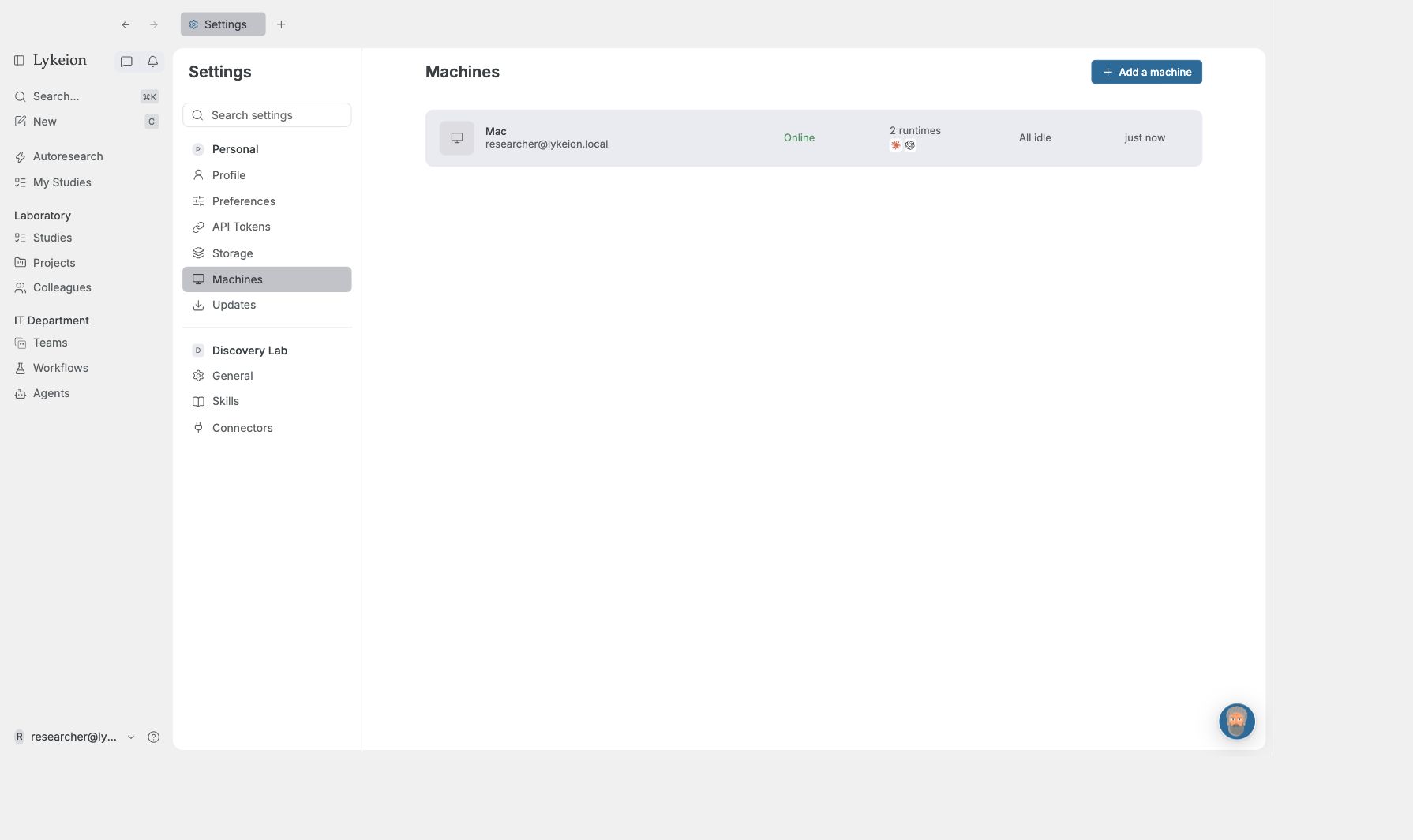
The detail shows the demonstration Mac marked Online. Open the image for the full Machines view.
Open the detected computer and inspect its runtimes. Confirm the intended CLI is online and healthy. The daemon discovers supported CLIs; a computer being online does not guarantee that every provider is authenticated.
Diagnose connection problems
On macOS or Linux, inspect status and logs:
lyk daemon status
lyk daemon logs
If no computer appears, check the account, hosted server address and network reachability. An address containing localhost refers to the computer running the command, so it cannot identify a remote hosted server.
Do not paste login codes or provider credentials into studies. Once the desired runtime is usable, return to your first study. Use runs and troubleshooting when a connected machine still cannot execute work.